Image Extractor Pro: Pull Every Image From Any Website in One Click
Right-clicking and saving images one by one gets old fast, especially when a page has forty product photos or a competitor's blog post has a dozen graphics you want to reference. Image Extractor Pro was built for exactly that problem: paste a URL, and it pulls out every image on the page so you can grab what you need without touching "Save As" more than once.
This guide walks through what the tool does, how to use it, and when it's actually worth reaching for instead of downloading images by hand.
Why You'd Need to Extract Images From a Website
Anyone who spends time doing content work eventually runs into this. Maybe you're auditing a competitor's product page and want to see every image asset they're using. Maybe a client sent a link to their old site and asked you to "just grab all the photos" before it goes offline. Maybe you're building a mood board and don't want to save forty separate files one at a time.
Manually right-clicking through a page works fine when there are three or four images. It stops working once you're past ten and it becomes genuinely painful on image-heavy pages like galleries, portfolios, or e-commerce catalogs. That's the gap a bulk image extraction tool is meant to close.
What Image Extractor Pro Actually Does
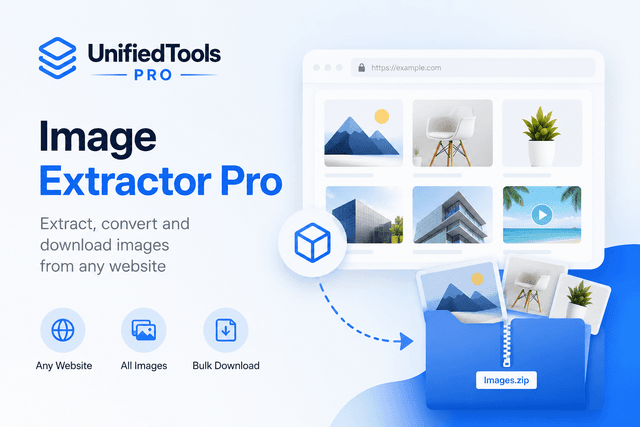
Image Extractor Pro scans a webpage you point it to and pulls out every image referenced on that page not just the ones sitting in the visible content area, but images loaded across the page's markup. It then packages everything into a single ZIP file so you download once instead of dozens of times.
"The number one reason people abandon a manual image-grab is fatigue after about ten right-clicks, most people just give up and screenshot instead," is the kind of observation you'll hear from anyone who's done this work at scale. A one-click extraction removes that friction entirely.
The tool runs in the browser with no account required, which matters if you just need a quick result and don't want to sign up for something you'll use twice a year.
How to Extract Images From Any URL Step by Step
Using the tool is straightforward, but a few details affect how clean your results come out:
Copy the full URL of the page you want to extract images from not just the domain, the exact page.
Paste it into Image Extractor Pro on the Image Extractor Pro tool page.
Let it scan the page. The tool reads through the page and detects every image reference.
Review the results. You'll see thumbnails of everything found, so you can spot anything irrelevant (like tiny icons or tracking pixels) before downloading.
Download as ZIP. One click bundles everything into a single file instead of individual downloads.
That's the whole process no browser extensions, no plugins, nothing to install.
What Formats and File Types Are Supported
Image Extractor Pro supports more than 20 image formats, so you're not limited to just JPG and PNG. That range matters more than people expect: modern sites increasingly serve WebP or AVIF for performance reasons, and older sites still have GIFs and BMPs floating around in their archives. A tool that only handles the two most common formats will quietly miss a chunk of what's actually on the page.
If you're dealing specifically with format conversion rather than extraction say you pulled a batch of images and now need them all in WebP for faster page loads UnifiedTools Pro also has a dedicated guide on converting PNG to WebP that's worth a look afterward.
Manual Saving vs. a Dedicated Extractor: What Changes
This isn't really about speed alone it's about consistency. When you manually save images one at a time, it's easy to miss ones that are lazy-loaded, hidden in carousels, or only rendered after a scroll event. A dedicated extraction tool reads the page's structure directly, so it catches images that a manual right-click pass would likely skip.
That distinction matters more than most people realize when the goal is a complete set of assets rather than "most of them." If you're doing a competitive audit or archiving a site before a redesign, partial results aren't good enough.
Common Situations Where This Tool Saves Real Time
A few scenarios where this comes up constantly in practice:
Competitor research pulling every product image or graphic a competitor uses to understand their visual strategy.
Content audits checking exactly what images live on a page before a redesign or migration.
Archiving grabbing assets from a site that's about to be taken down or rebuilt.
Design reference collecting images from a page for a mood board or style reference without saving each one individually.
Client handoffs quickly packaging a client's existing site images into one file to hand over.
None of these require anything fancy they just require not wanting to click "save image as" thirty times in a row.
Tips for Getting Clean Results
A few practical notes that make the output more useful:
Extract from the exact page, not the homepage, if you only want images from a specific article or product listing.
Check the thumbnail preview before downloading pages often include small UI icons or logos you probably don't need in your final set.
Pair it with a background remover if the images you pull need cleanup before reuse UnifiedTools Pro's Background Remover handles that in the same workflow.
Crop or resize afterward using the Image Cropper if you need specific aspect ratios for social posts or listings.
Run an SEO check on your own image usage with Image SEO Pro if the extraction is part of a broader content or SEO audit.
FAQs
Is Image Extractor Pro free to use? Yes. You can extract images from any URL without creating an account.
Does it work on any website? It works on publicly accessible pages. Sites that block automated access or require login won't return results, since the tool reads only what's publicly available on the page.
What file formats can it extract? Image Extractor Pro supports over 20 formats, covering the common ones (JPG, PNG, WebP, GIF) as well as less common formats you'll occasionally run into on older or specialized sites.
Do I get all the images in one file? Yes results are bundled into a single ZIP so you don't have to download images one at a time.
Is this legal to use for any website? The tool only extracts what's publicly visible on a page. Whether you're allowed to reuse those images depends on their copyright and licensing extraction and usage rights are separate questions, so check licensing before reusing anything commercially.
Can I use extracted images for commercial projects? That depends entirely on the original image's copyright status, not on the tool itself. Always verify licensing before commercial reuse.
Does it slow down or affect the website I'm extracting from? No it simply reads the publicly loaded page content once, the same way a browser does when you visit it.
Author Bio
Our SEO Team UnifiedTools Pro's editorial team writes practical, tool-focused guides based on hands-on use of the platform's 100+ free tools.
CTA Section
Ready to stop right-clicking one image at a time? Try Image Extractor Pro free no signup, just paste a URL and download every image in one ZIP.
One link, one click, every image that's the whole point.
Frequently Asked Questions
Is Image Extractor Pro free to use?
Does it work on any website?
What file formats can it extract?
Try the tools in this article
101+ free tools — SEO, images, PDF, dev